
Master of Backups
Be ready when it hits the fan.
A whole-computer backup you actually come back from, and rescue media that starts even when Windows won't.
Version 1.0.1 · 59.8 MB · Windows 10 and 11 · free · English and Czech
A backup of just C: won't rebuild a computer
The basic motto of MoB: Back up the whole disk. Most backup programs save your files or your C: drive. But a computer needs more than that to start: the boot loader, the partition table and the recovery partition. Whoever has been backing up just "C:" for years finds out on the worst possible day. That is why MoB does two things, not one.
Whole-disk backup
The whole disk, with everything the computer can't start without. After a crash you put it back on the same disk or a new one, and Windows starts the way it was - programs, settings and files included.
Rescue medium
A USB flash drive the computer starts from even when Windows won't, or when the disk is brand new. MoB finds the backups by itself and restores them. No command line.
From the first backup to a restored computer
Real MoB 1.0.0 windows. Click through with the arrows, the steps below the picture, the ← → keys or a swipe.
In Windows
Back up, make the rescue medium, relax.
Loading. An angel over a graveyard of hardware. That graveyard is exactly what MoB protects you from. 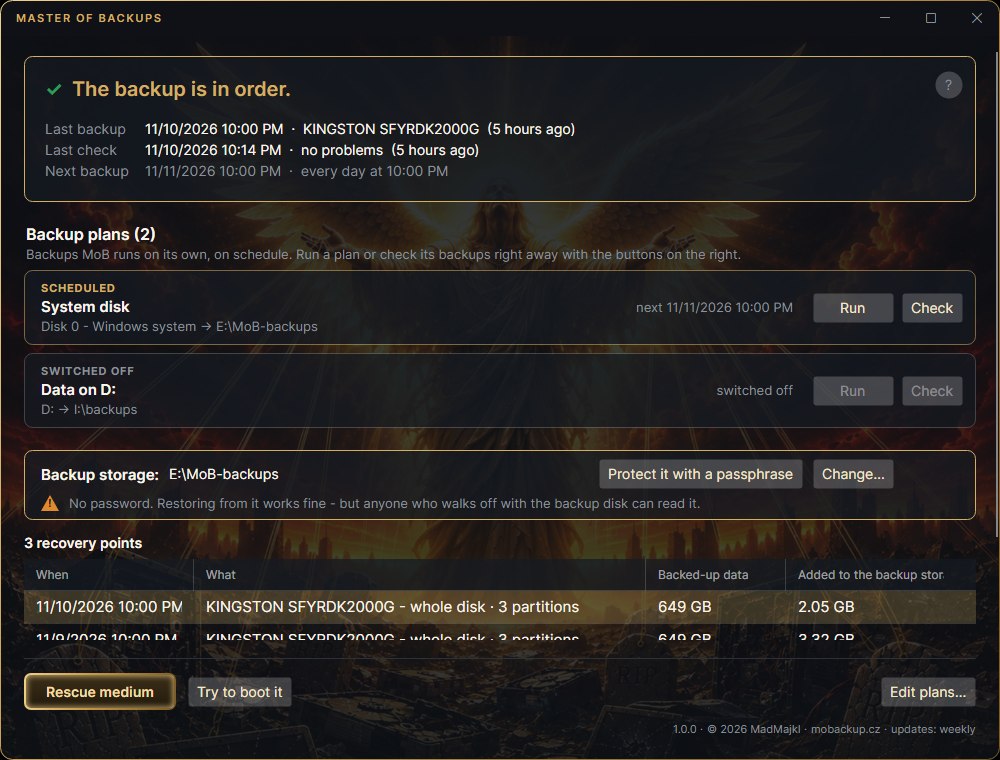
Main window. One sentence answers the question that matters: can you rely on the backup? Below it the backup plans, the storage and the recovery points. 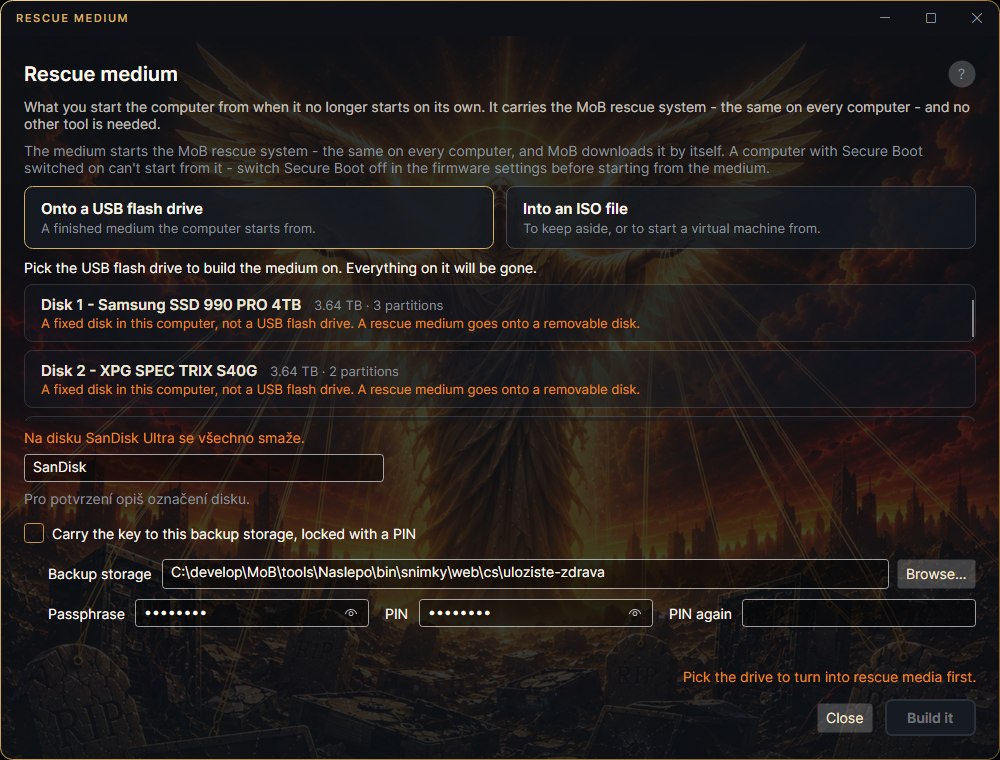
Making the medium. Pick a USB flash drive and MoB turns it into rescue media. It downloads and verifies the rescue system by itself. 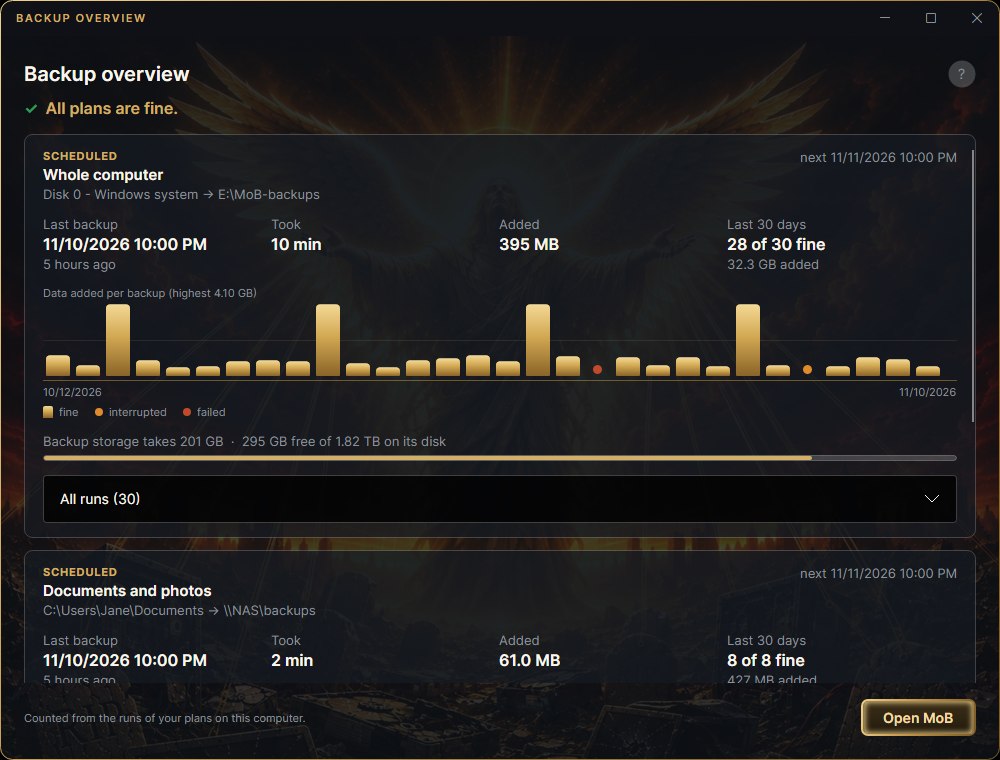
Finished backups. The backup overview: when each plan ran, how long it took, how much was added and how it did over the last 30 days. 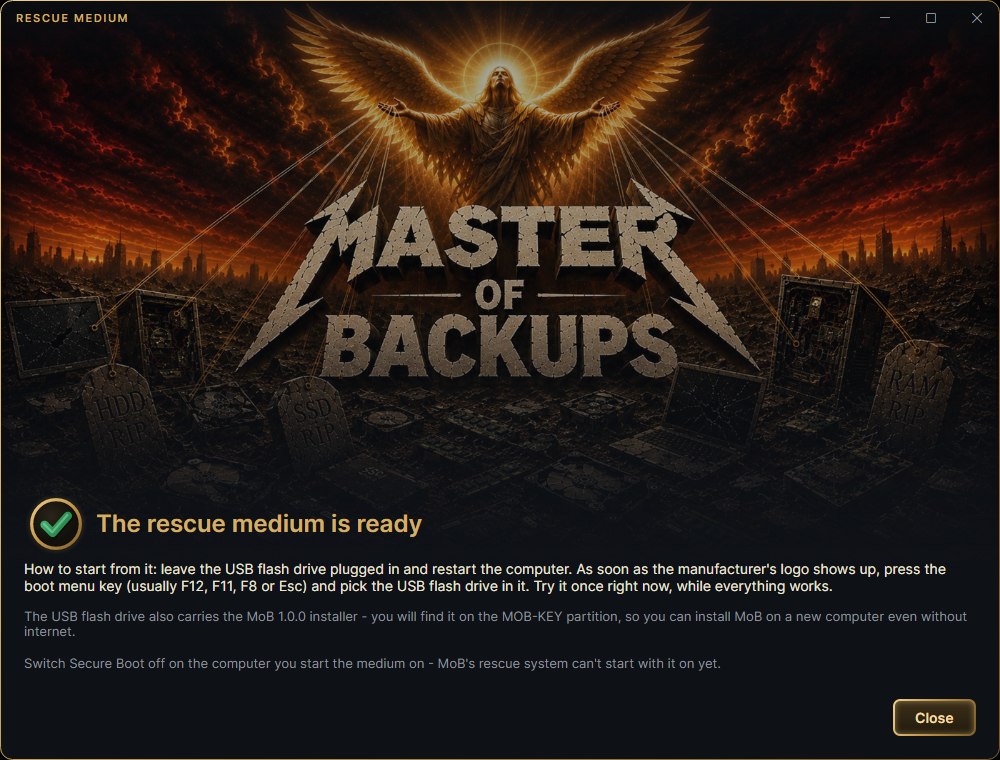
Medium ready. With instructions on how to start from it. It carries the MoB installer too, so you can install MoB on a new computer without internet. 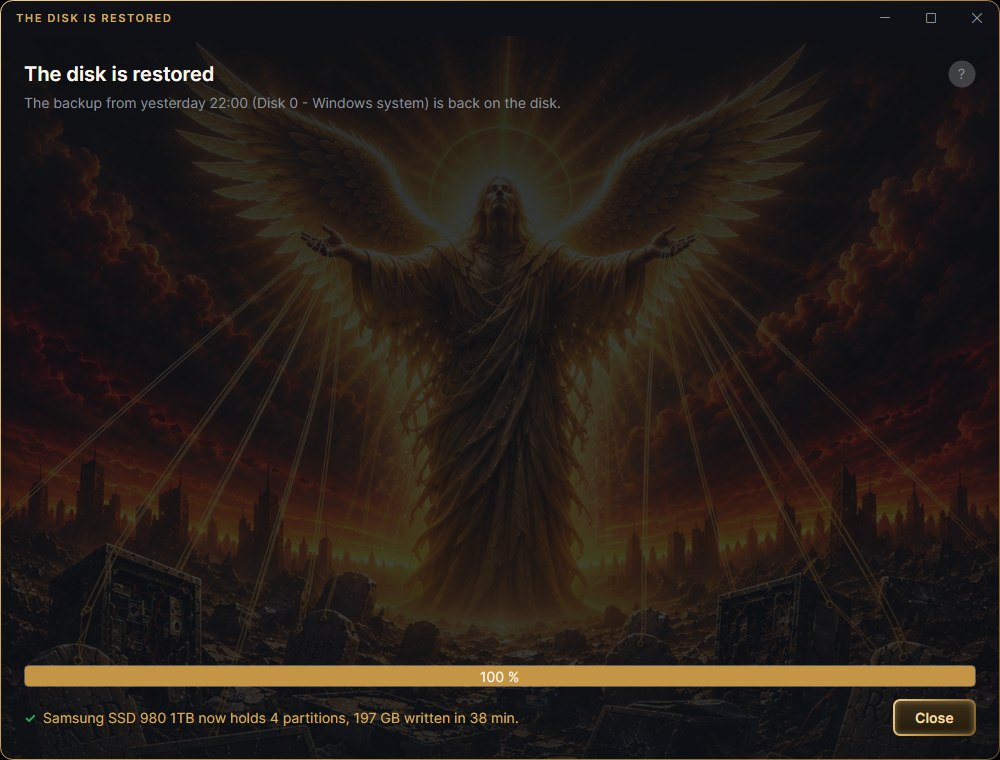
Restored. The disk is back. MoB tells you what it restored, how much it wrote and how long it took.
On the rescue medium
When it hits the fan and Windows won't start.
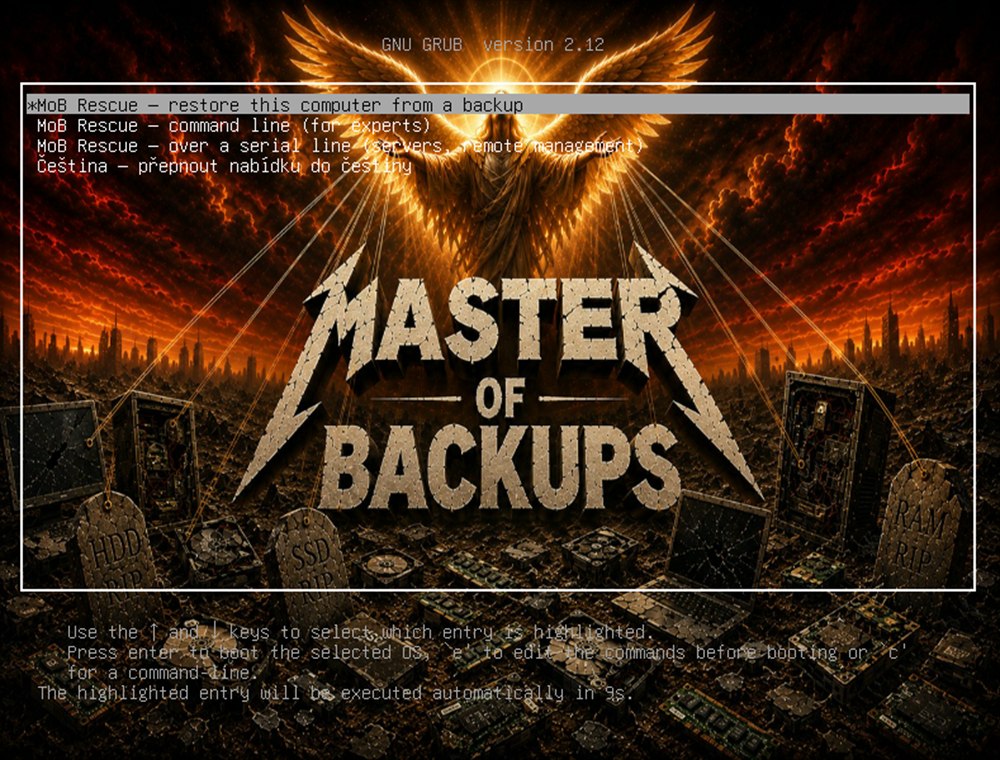
Start from USB. The medium starts on computers with UEFI and with older BIOS too. Just pick it in the boot menu. 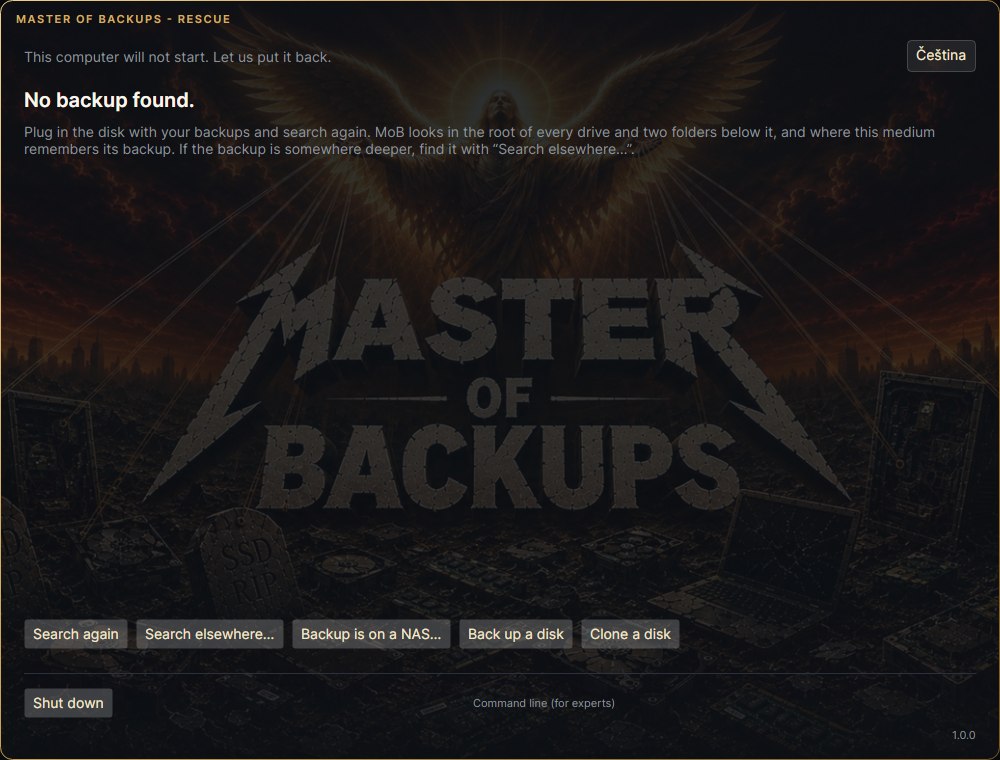
Start. The rescue system loads entirely into memory and opens the MoB window. Searching, NAS, backup and cloning are all buttons. It speaks English and Czech. 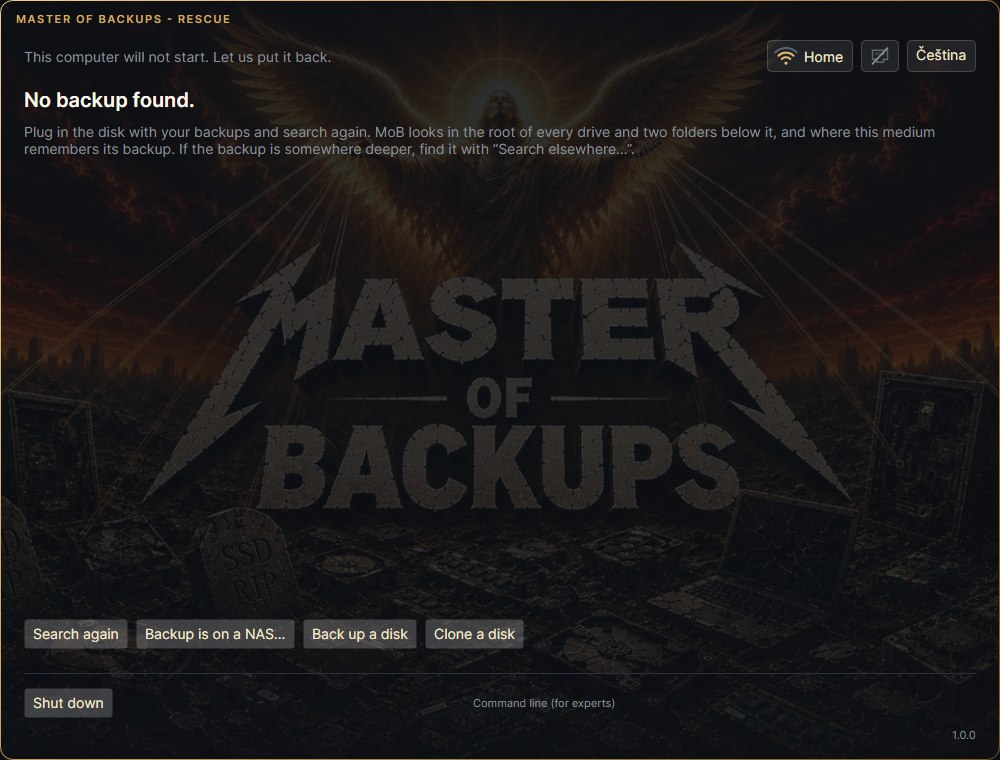
Searching for backups. MoB searches the connected disks and USB flash drives by itself. It reaches a backup on a NAS over cable or Wi-Fi. 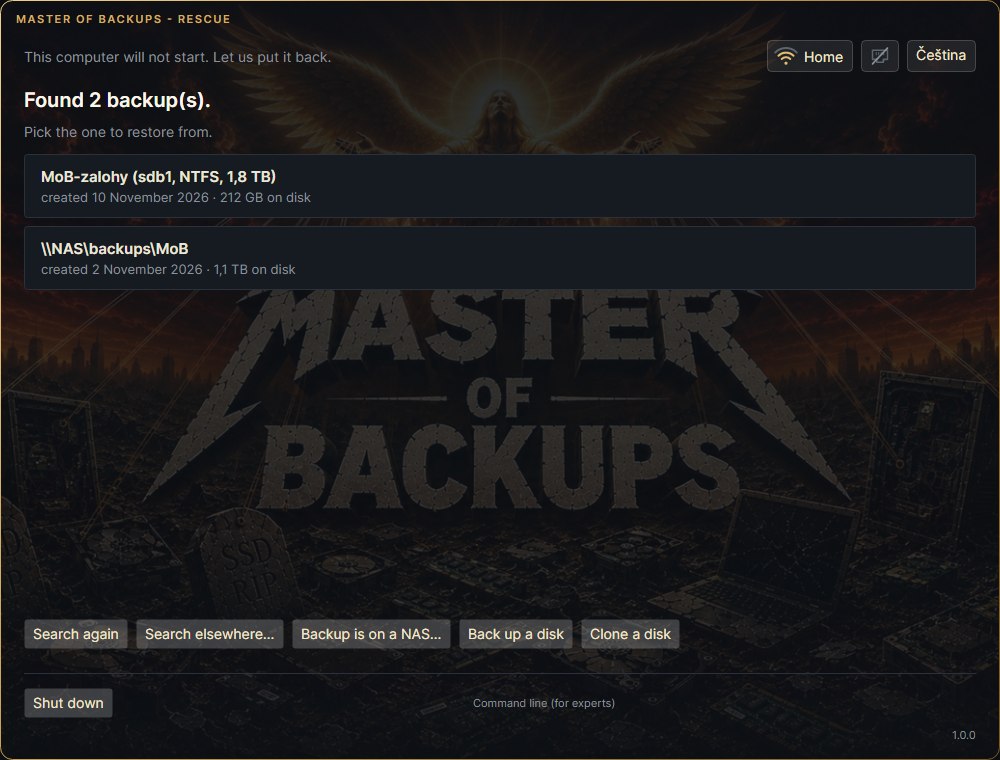
Backups found. Pick the backup and the disk it goes back to. Nothing to type on a command line. 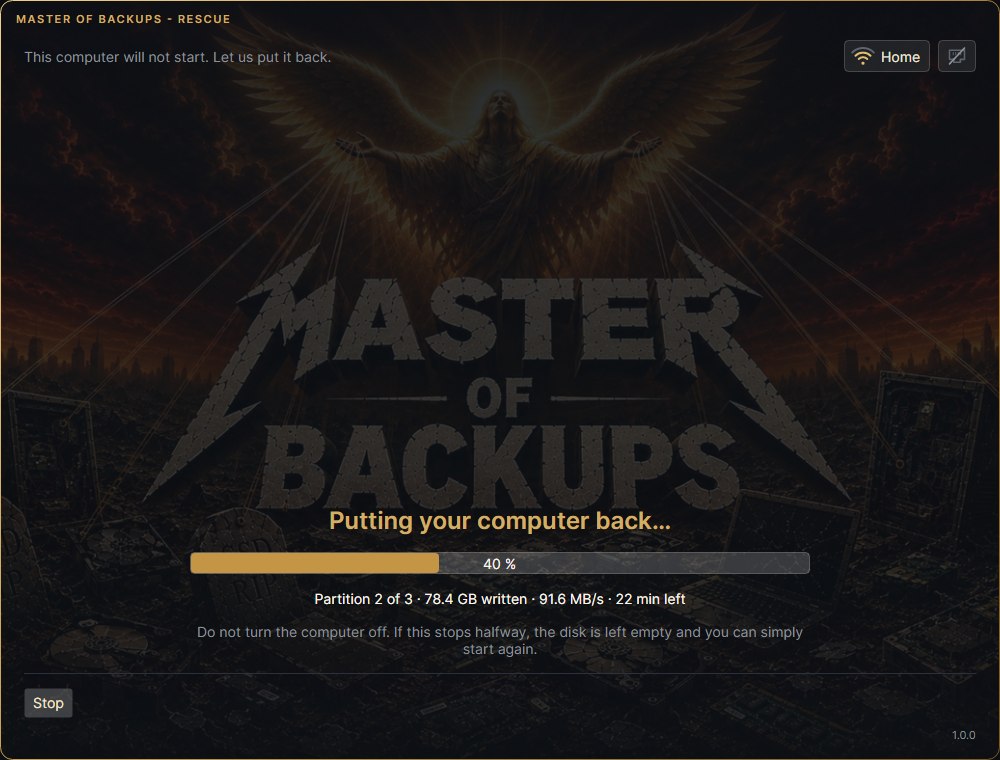
Restoring. Progress, speed and time left. The restore can be stopped. 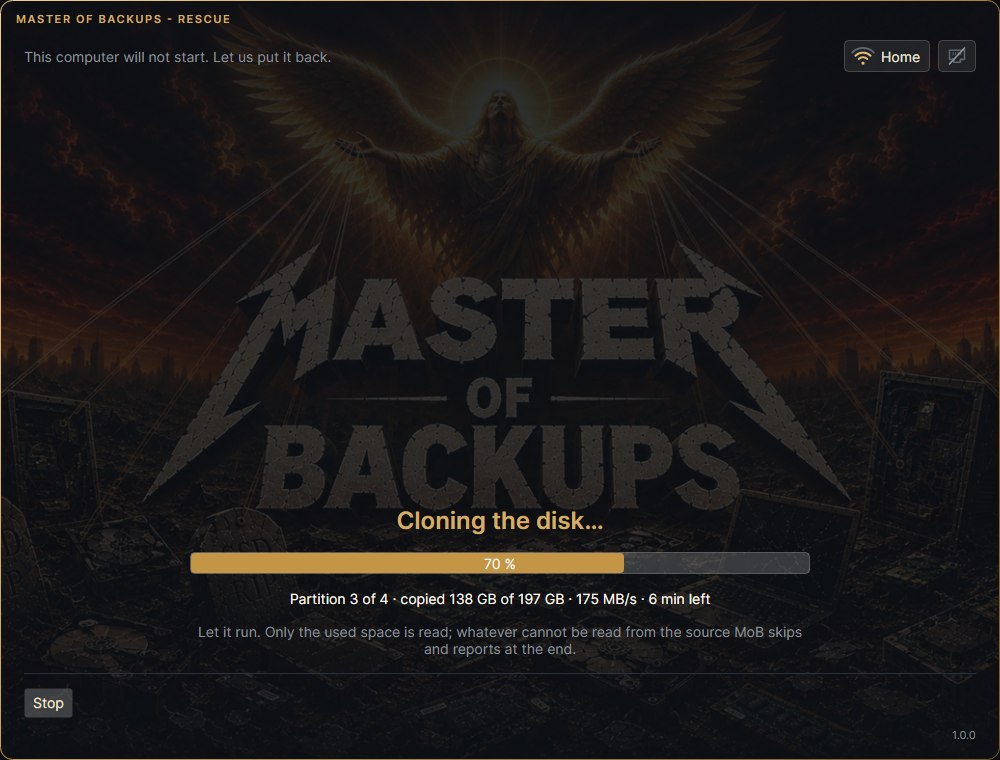
Cloning. The rescue can also clone a disk onto another one - an exact copy the computer starts from. Only the used space is read. 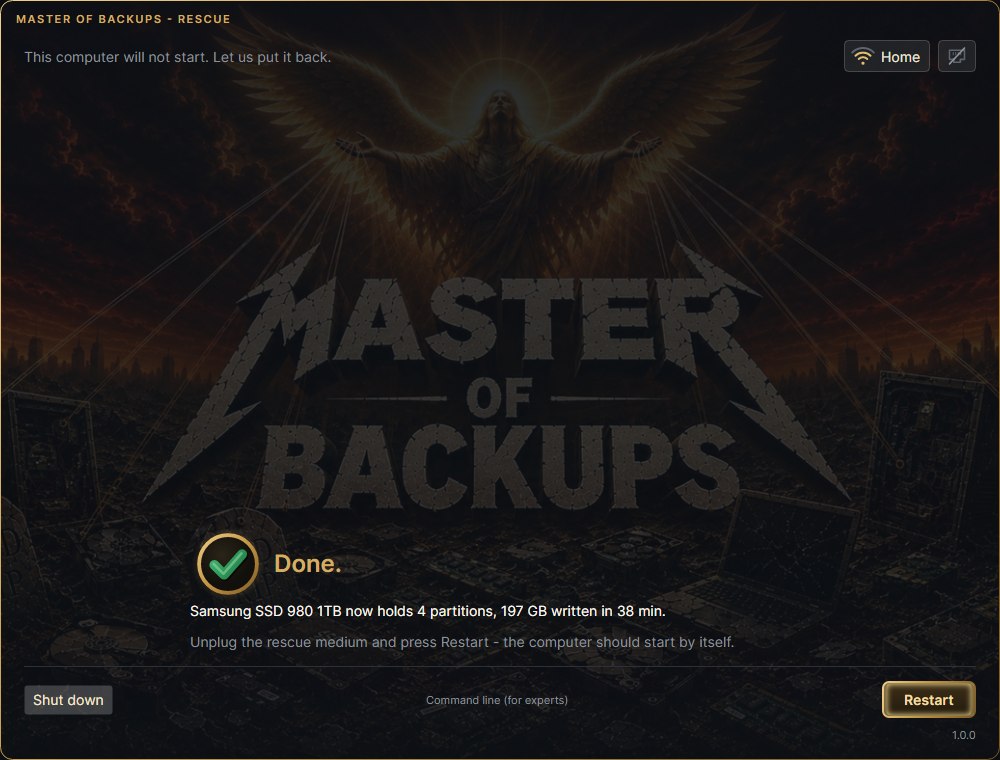
Restored. Done. Pull out the medium, restart, and the computer is back.
Everything you need on the bad day
And nothing that bothers you on all the others.
The whole computer or one file
Backs up the whole disk with its boot partitions, single volumes and folders. From a disk backup you can bring back a single file.
Rescue medium
Its own rescue system on a USB flash drive. Starts with UEFI and BIOS, handles Wi-Fi and NAS, restores or clones a disk.
Proves you can rely on the backup
After every backup it reads it back and checks every block. Try to boot it starts the backup in a virtual machine and shows that Windows comes up from it.
Passphrase encryption
Encrypts the backup (AES-256-GCM): whoever walks off with the backup disk can't read a thing. Forget the passphrase and the recovery key opens it.
Only what changed
After the first backup it stores only the changes. The same data is stored once and compressed, so ten backups don't take ten times the space.
On schedule, without nagging
Backs up by itself, even when nobody is at the computer. After the computer starts it waits 10 minutes and runs in the background, out of the way of whoever is working.
Wherever you want
To an external disk, a second disk in the computer or a network folder (NAS). Your backups go nowhere else.
Restores even a damaged backup
When part of a backup is damaged, it restores everything else and tells you at the end what is missing and which files it affects. Never silently.
Plain words, not error codes
When something fails, MoB says in one sentence what happened, which disk it concerns and what to do next.
Master of Backups 1.0.0
For Windows 10 and 11 (64-bit). Free, no registration, no ads.
Installer
One file; MoB installs everything it needs by itself.
Make sure this one is really the one
You can compute the file's fingerprint and compare it. If it matches, it is exactly the file we released.
SHA-256:5204257cc36a60f88eeb76d573ac4fc61bf724a82ad0f84e5b7722de31f4a127
On the command line:certutil -hashfile MoB-Setup-1.0.1.exe SHA256
Good to know first
- Secure Boot has to be off on the computer you start the rescue medium on. The MoB rescue system doesn't start with it yet.
- Try to boot it needs Hyper-V, so Windows 10 or 11 Pro (not Home).
- BitLocker: a restored disk is not BitLocker-encrypted; you turn it on again. A backup of such a disk therefore belongs in storage with a passphrase.
How to start
- Install MoB and connect the disk the backups will go to.
- Plan a backup of the whole disk. MoB walks you through it and runs the first backup right away.
- Make the rescue medium and try starting from it once, while everything still works.
Details in the help.
No account, no cloud, no tracking
Backups stay with you
Backups are only where you send them - on your disk or NAS. MoB has nowhere to upload them.
No account
No registration, no sign-in, no e-mail. Download, install, back up.
It only asks the website about new versions
And downloads the rescue system from it. What exactly it sends is in the privacy policy.
What people ask
Is MoB free?
Yes. No ads, no registration and no subscription.
Which systems is it for?
Windows 10 and Windows 11 (64-bit). The rescue medium starts on computers with UEFI and with older BIOS; Secure Boot has to be off.
Where can I back up to?
An external USB disk, a second disk in the computer or a network folder (NAS). The rescue medium reaches a NAS over cable and over Wi-Fi.
What if I forget the passphrase?
When you protect a backup with a passphrase, MoB gives you a recovery key. It opens the backup without the passphrase, so keep it somewhere other than the backup disk.
Does MoB need the internet?
Not for backing up or restoring. The internet is only needed to download the rescue system when making the medium, and to check for new versions.
Can I restore to a different disk?
Yes. A whole disk can go back to the same disk or to another one, for example when the original died. From the rescue medium you can also clone a disk directly.
How do I know the installer is genuine?
The installer is digitally signed by the publisher Michal Foist, and its SHA-256 fingerprint is above. MoB checks fingerprints itself too: it only uses an update installer or a rescue system whose fingerprint matches.
Same approach, different worries
No third-party ads - these are our own projects. They do what they say and nothing behind your back.

mailniño
An e-mail client for Windows and Linux. Instant search, a unified inbox and Czech data boxes right next to your mail. Free.
Viktor the Cleaner
A Windows cleaner that shows you what it wants to delete before it does it. No ads, no scare tactics, free.

MeteoTrace
The weather at every point of your route, at the time you'll actually get there. Plus rain radar and Czech weather warnings.
Gulpka
A water tracker for your phone that hands out titles and medals. It reminds you, counts for you and sends nothing anywhere.

MadMajkl
Music by Michal Foist - the album Světlo v nás, official music videos and a songbook with lyrics and chords.