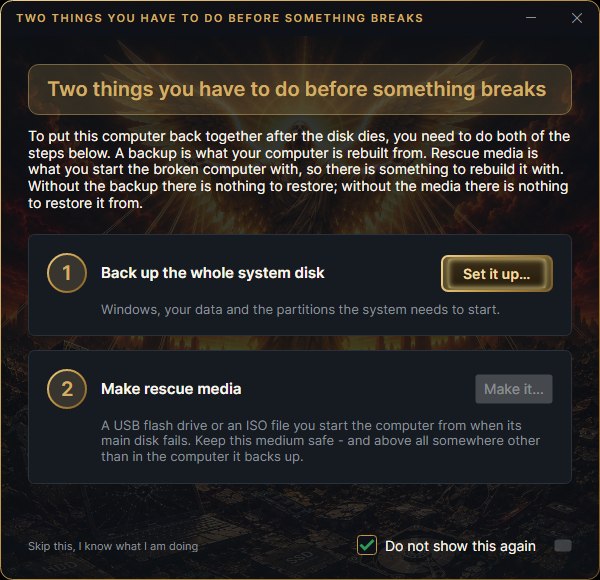
Help
How to back up, build a rescue medium and get your computer running again.
The main window
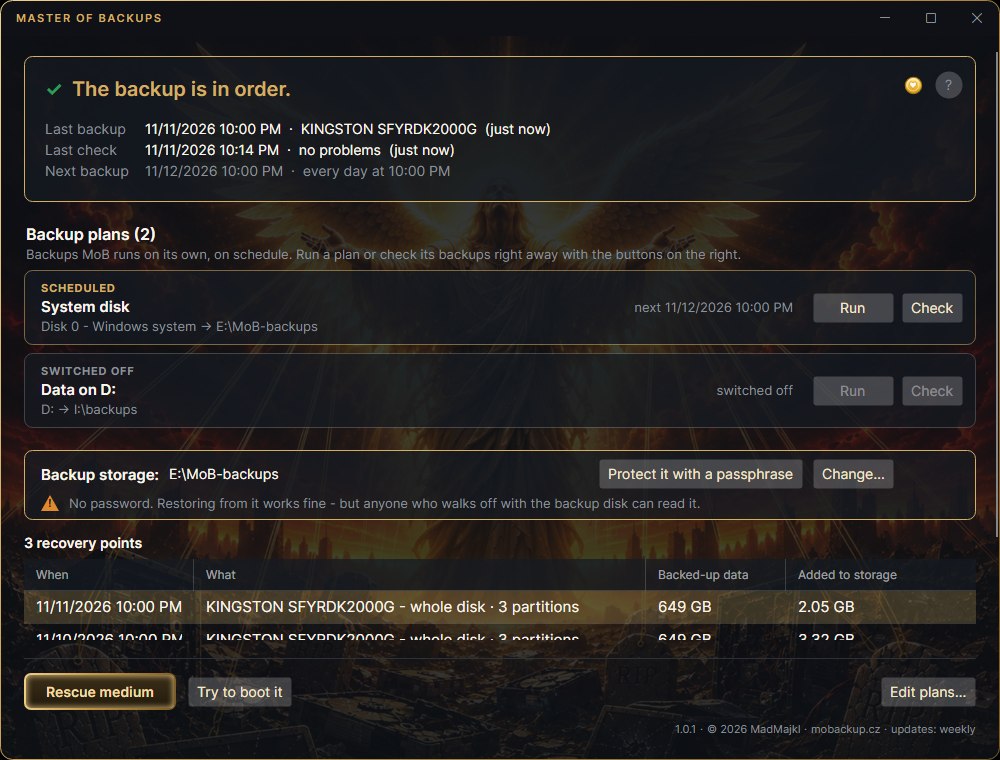
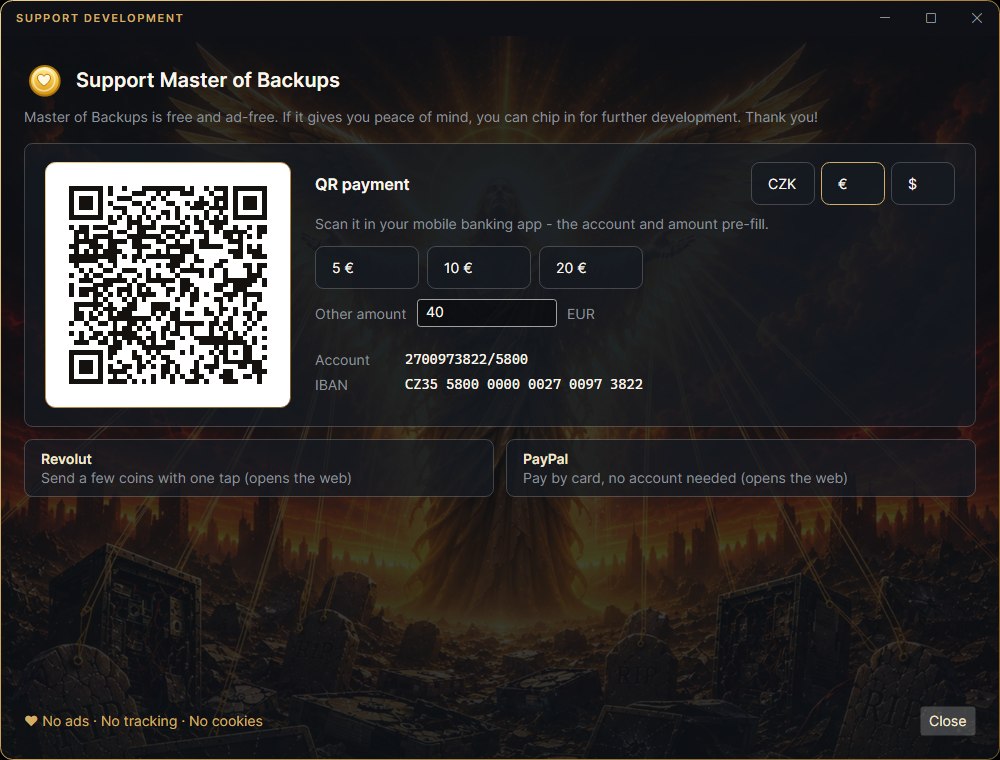
- Verdict - how your backups are doing. When there is something to do, a single gold button sits next to it (a glow spreads in it from the label to the edge - three times, then only under the mouse): Schedule a backup…, Find the backup…, Check the backups or Run “…” now. With a healthy backup there is none. Next to the question mark at the top right is a gold coin with a heart - Support development: QR payment, the account number and links to Revolut and PayPal. MoB is free; if it gives you peace of mind, you can chip in for further development this way. When the last backup did not finish, the verdict is followed by The details are in the Backup overview. and a Backup overview button that opens it.
- Backup plans - backups MoB runs on its own, on schedule. Every plan has Run (starts it now, the same way as on schedule) and Check (reads its backup storage back and verifies it). Clicking a plan switches the window to its storage and opens that plan for editing. Plans are set up with Edit plans… at the bottom right, see backup schedule. A one-off backup is a plan with the schedule manually and its Run.
- Backup storage and restore points - where backups go and what you restore from (Restore…). The storage sits in a card with a gold frame: Change… opens a different one, and storage no plan backs up into is checked with the Check button next to its path. Next to Change…, a backup with a passphrase has New recovery key…; a backup without one has Protect it with a passphrase there, and in the same card, under the path, an orange triangle with a warning that the backup has no password. While MoB knows no backup yet, the card says I already have a backup and has a Find… button - that is how you show MoB the folder with a backup you already have.
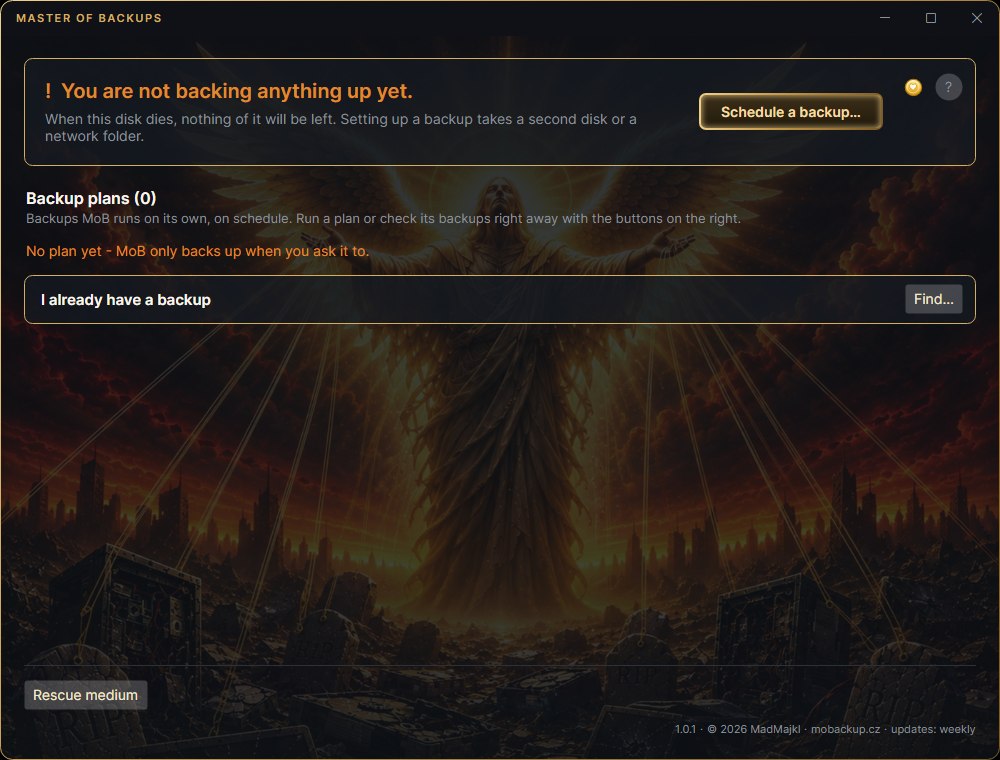
Below the line there are Rescue medium (on mouse-over it reminds you: Make one every now and then!) and Try to boot it. While a backup runs, the window shows only its progress (how much is done and how long is left) and the Stop the backup button. Meanwhile the computer does not fall asleep on its own (the display may still turn off). If the backup has not moved for ten minutes, the window says so - most often the backup drive is disconnected. An interrupted backup picks up where it stopped - what was already stored is not written again. The plan does not restart on its own: it waits for its next run time, and instead of Run it offers Continue.
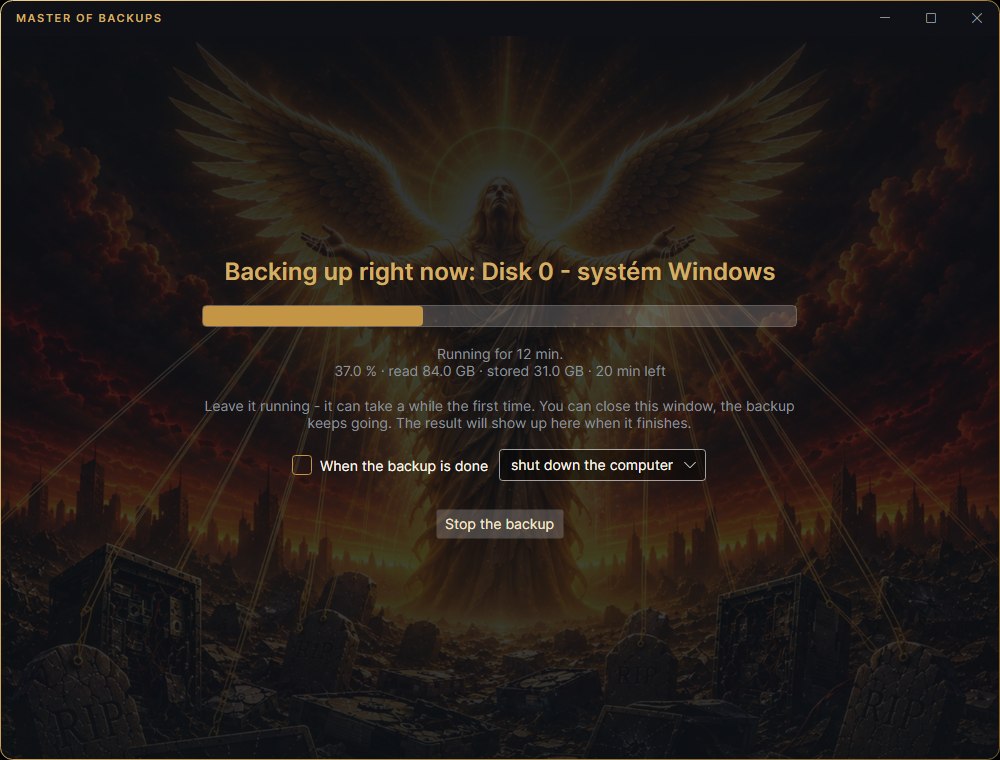
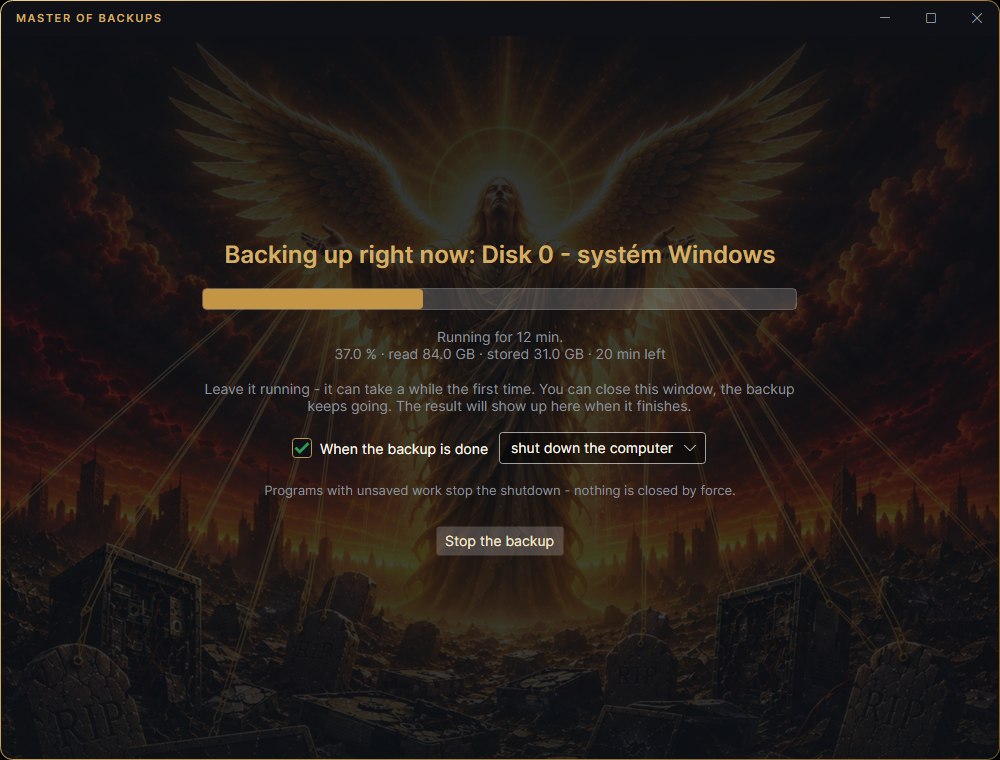
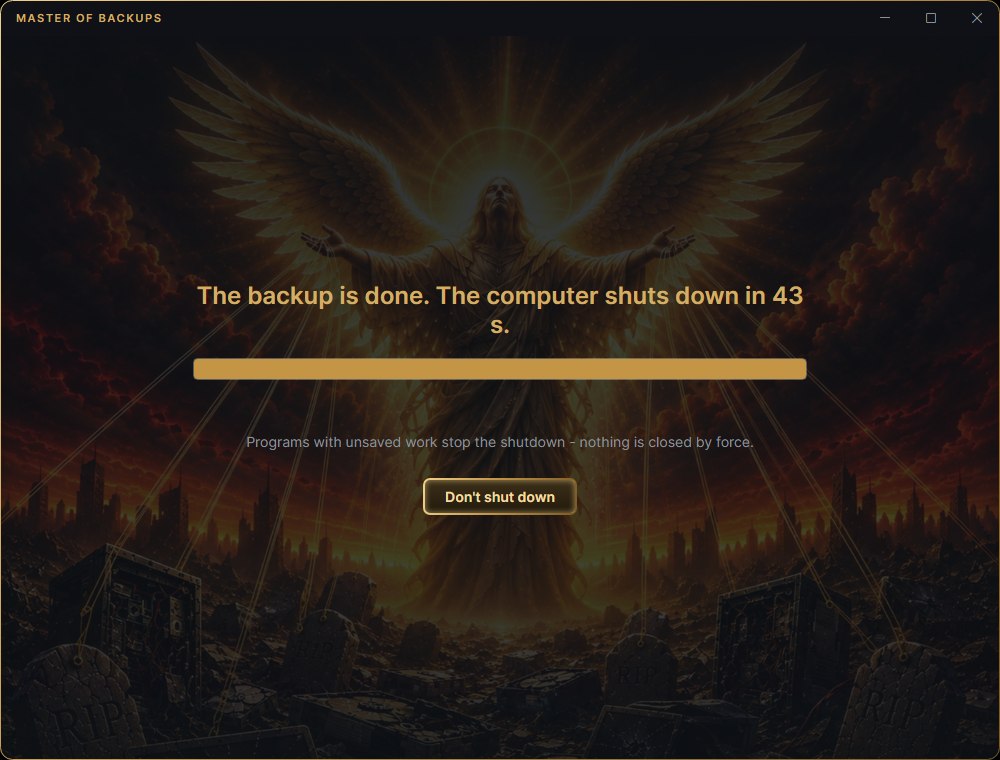
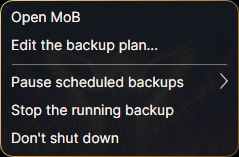
Shut down or sleep when the backup is done: below the progress there is also a When the backup is done checkbox with shut down the computer or put the computer to sleep. It applies only to the backup running now - when several run one after another, after the last one - and happens even with the window closed. After the backup a one-minute countdown runs, which you cancel with Don't shut down (Don't sleep) in the window or in the menu of the MoB icon in the taskbar. Nothing is closed by force: a program with unsaved work stops the shutdown. If you stop the backup, nothing is shut down.
Start here
Backing up
What MoB backs up, where to, and how much it reads.
02Schedule
So it happens on its own, with nobody at the computer.
03Rescue medium
What your computer starts from when it no longer starts on its own; it can also back up or clone a disk.
04Restoring
Putting a backup back: a whole disk, one partition, or a single file.