
Restoring
Putting a backup back - a whole disk or system, a single partition, or a single file.
What can be restored
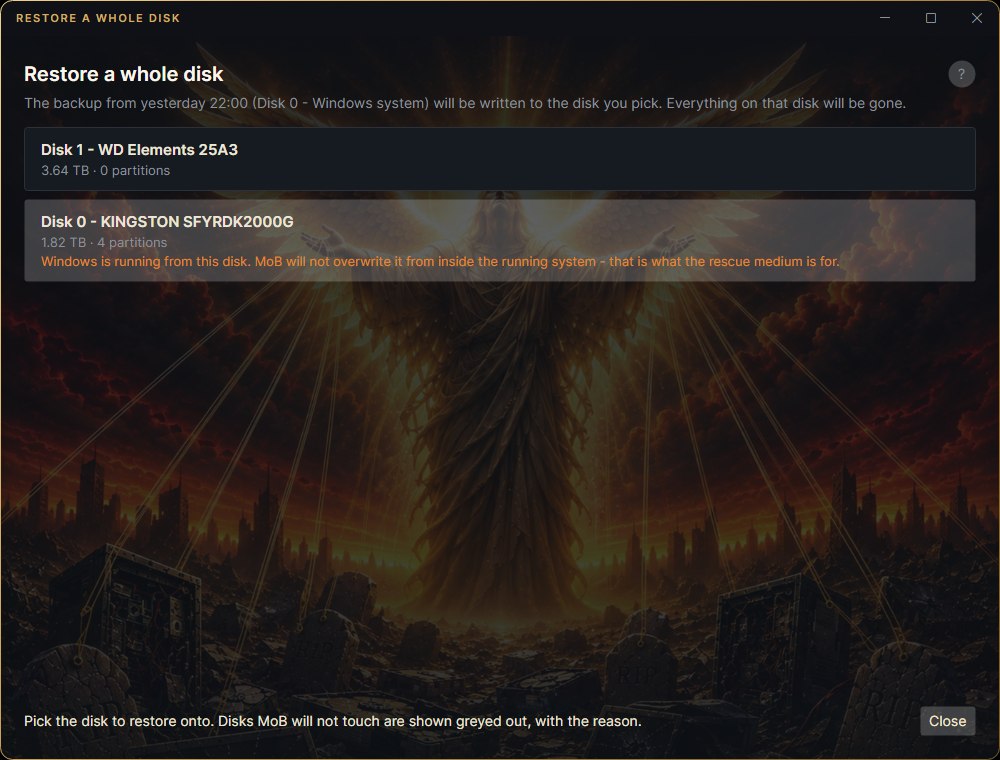
- A whole disk - onto another disk with everything, partition table included. The computer boots from it. From the main window it only goes onto a virtual or USB disk; onto a fixed disk in the computer, use the rescue medium.
C:with everything it needs to start - either onto a disk as the whole system (MoB creates the boot partitions andC:), or justC:onto its original partition, leaving the rest of the disk as it is. The second one is right when the same disk holds data that is not in the backup; the rescue medium offers it, becauseC:cannot be overwritten from the running Windows. From the main window the whole system goes onto a virtual or USB disk.- A backup of any other volume - it goes onto a partition you pick; the rest of the disk is untouched. It also goes onto an empty disk (after a replacement): MoB creates a partition and puts the data back, but no computer boots from such a disk. From the main window a volume goes back onto its original partition (say
D:as it was yesterday) or onto an empty virtual or USB disk; anywhere else, use the rescue medium. - Individual files from a file backup, and from a disk or volume backup too - see below.
- Into a
.vhdfile you can boot a virtual machine from, or just look inside - from the command line,mob restore-disk.
From the window
- Pick a restore point in the main window. If the storage is encrypted and the passphrase is not stored, open it with Unlock first.
- Click Restore….
- Choose the target. Disks and partitions MoB will not touch are greyed out with the reason - for instance because the backup itself is on them.
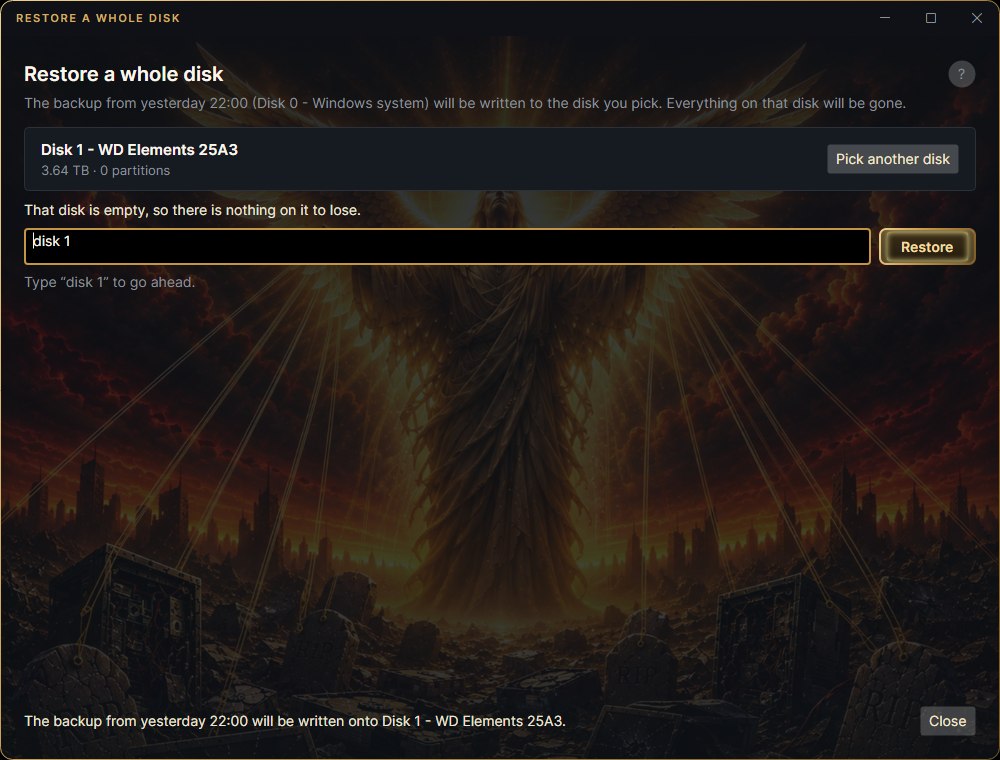
- Type the target's name (
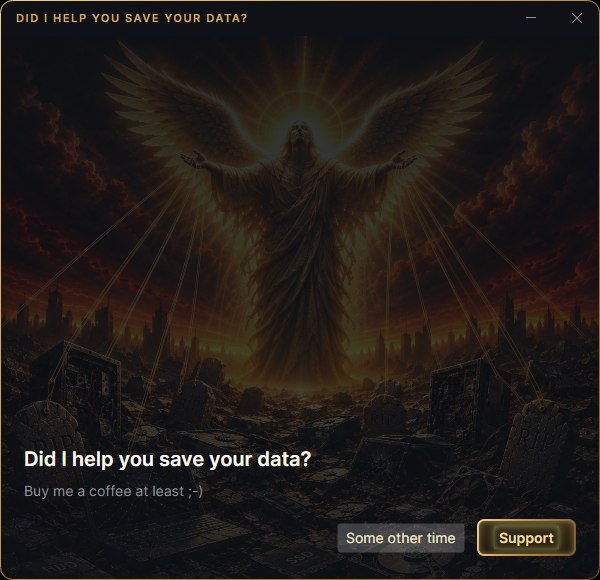
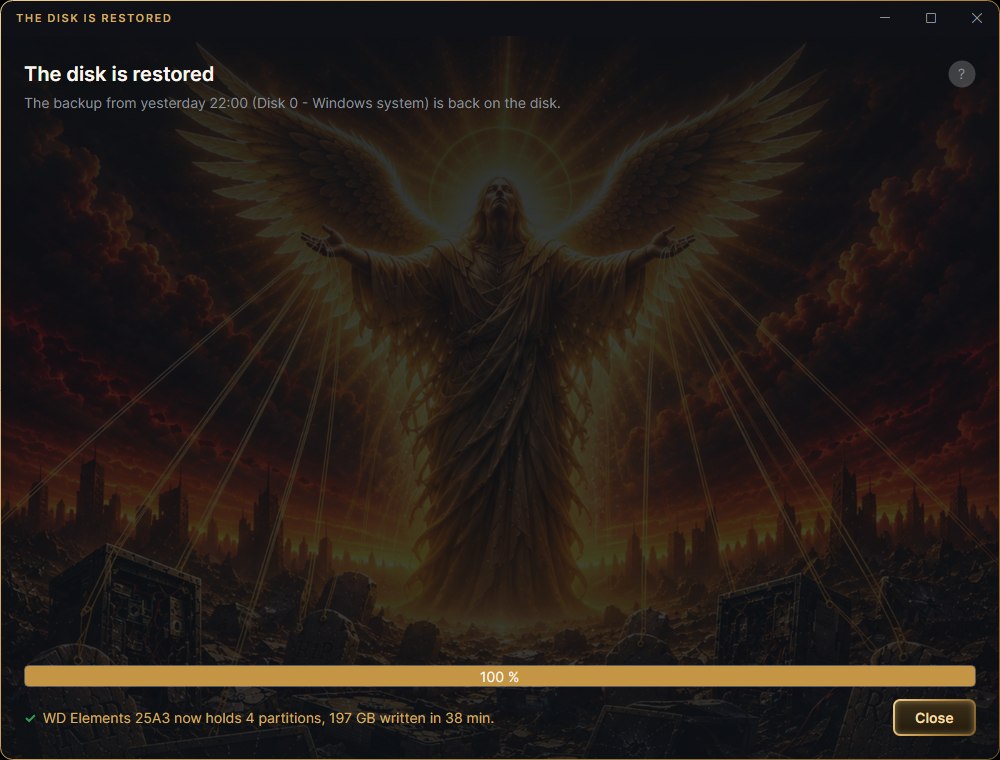
disk 2, for a partitiondisk 2 partition 1) and click Restore. - After a successful restore MoB asks Did I help you save your data? and invites you for a coffee: Support opens the window with the QR payment, Some other time closes the invitation.
A restore can be stopped with Stop (or the window's close button). MoB asks first and tells you what will be left: a disk with no partitions, or for a partition restore, a half-written partition. The backup itself does not change - run the restore again from the same window.
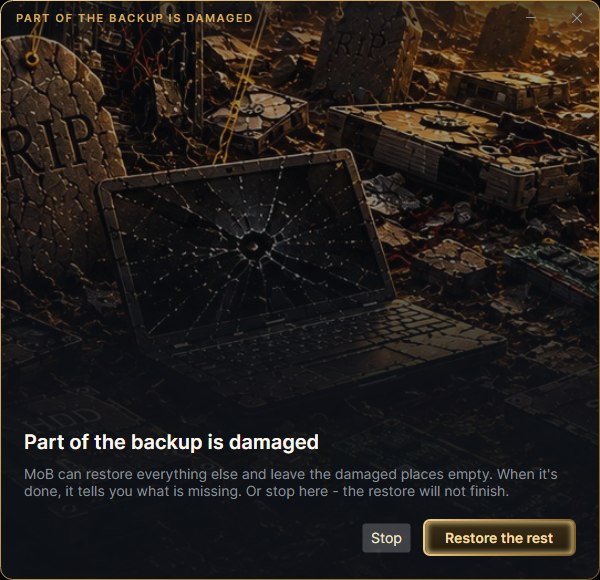
When the backup is damaged (a piece of data is missing from the storage or does not match its checksum), the restore stops and asks: Restore the rest, or Stop. With Restore the rest it leaves the damaged places empty, finishes the restore and tells you how much is missing and which files it hit. A file restore skips the damaged file and lists it. Then make a new backup as soon as you can.
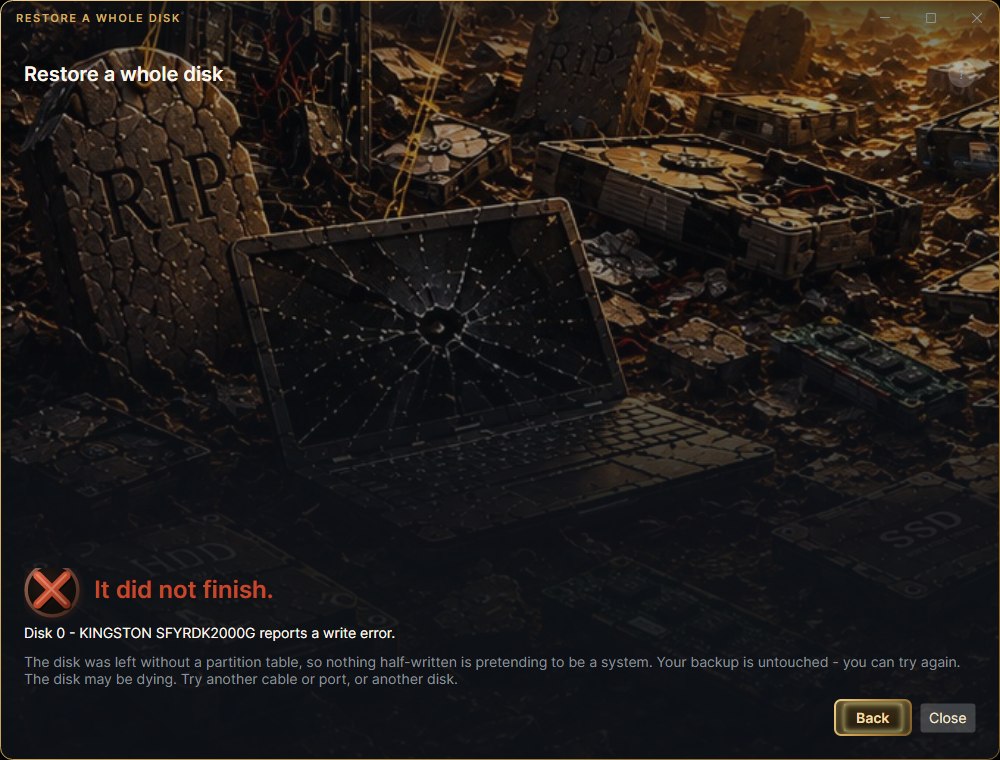
When a restore fails, the window shows just a short message: what happened, which disk it is about, what was left and what to do next. Back takes you to where you can run the restore again. The original Windows message is in the log %LOCALAPPDATA%\MoB\errors.log (in the rescue system mob-rescue.log on the USB flash drive) - send it along if you report the problem.
The system disk
A disk with a running system cannot be overwritten from inside it - Windows hold it. That is what the rescue medium is for: you start from it and restore from there. After it starts, the MoB window comes up and walks you through the restore step by step.
Individual files
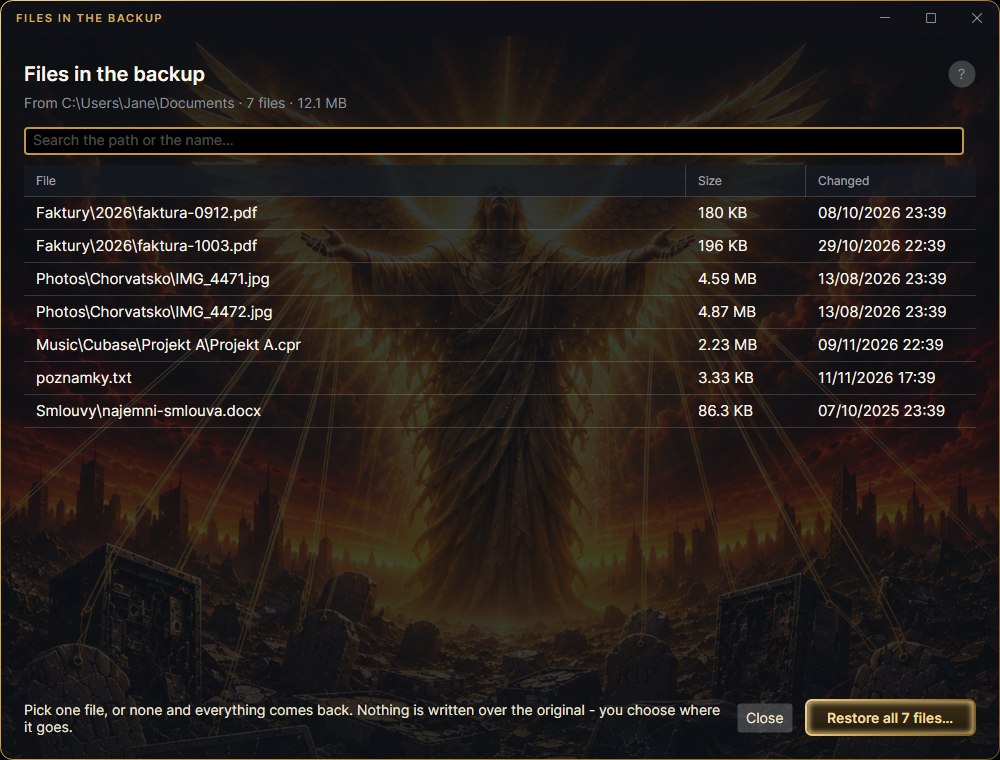
With a folder backup (Folders… in the main window, or a plan with folders) you do not have to bring everything back. After clicking Restore… you browse what is in the backup (you can search the path or the name) and pull out a single file, or everything at once, wherever you say. Nothing is written over the original.
With a disk or volume backup, click Browse files… (for a disk backup you then pick the partition). MoB unpacks the partition into a temporary virtual disk and opens it in File Explorer read-only - copy out what you need. The files are read by Windows itself. Everything that was on the partition is unpacked, so it takes a while and needs that much free space; MoB finds it on its own and tells you where the image goes. When you close the window, the drive disappears and the image is deleted - so finish copying first.
Try to boot it
The Try to boot it button (at the bottom of the main window, next to Rescue medium) restores the selected restore point into a temporary image, starts a virtual machine from it and shows you a picture of the screen. It is proof that the backup is more than a file. MoB only offers it where there is something to boot - not for a D: backup. It needs Hyper-V and administrator rights; where there is no Hyper-V, the button stays greyed out and the reason is written under the list.
The temporary image takes roughly as much space as there is data on the disk. MoB works that out beforehand and puts the image where it fits with 10 GB to spare - first into the temporary folder, otherwise onto the local disk with the most free space. If it fits nowhere, it says so straight away. Afterwards it deletes the image and its folder and writes the result into the log: a successful boot test counts as a check of the backup.
The test can be stopped at any time. Neither the backup nor your disks are touched, so MoB does not ask: it stops the virtual machine, deletes the temporary image and writes nothing into the log.
What restoring does not do
MoB puts the disk contents back as they were. It does not repair the boot loader where the disk layout had to change, and it cannot split one disk's backup across two. As long as the target disk is big enough, the restore matches partition by partition.
BitLocker is not restored. A backup made while Windows runs reads a BitLocker volume decrypted, so the restored volume is not encrypted - Windows starts from it as usual. Done after the restore says so; then turn encryption back on (search Settings for "BitLocker" or "Device encryption"). A disk clone from the rescue medium keeps BitLocker.