
Backing up
MoB stores a bit-for-bit copy of a volume or a whole disk - and plain files from a folder too.
What can be backed up
- Whole disk - everything on it, partition by partition, partition table included. A computer can be rebuilt from this backup, even onto a new disk.
- Volume (
C:,D:) - one partition. For the volume Windows run from, MoB adds the partitions the machine boots from on its own, so a computer can be rebuilt from it as well. The difference between a volume and a disk is worth reading. - Folder of files - documents, photos. Fast and small, but no system comes back from it.
The backup storage
Storage is a folder your backups go into - a USB disk, a NAS, anywhere. MoB only stores blocks that are not in it yet, so a second backup of the same disk takes a fraction of the space. A scheduled backup to a network folder needs stored sign-in details - see the backup schedule.
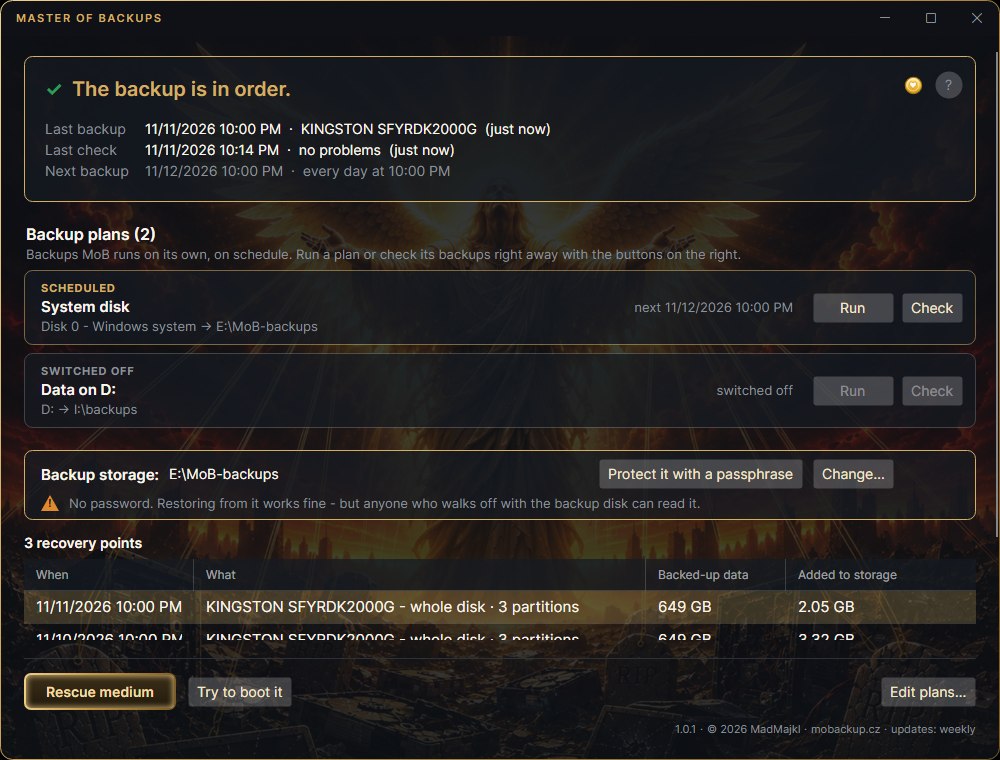
The passphrase is your call. Storage with a passphrase is encrypted, and the backups do not open without it. When it is created, MoB shows a recovery key once - write it down on paper; it opens the backup instead of the passphrase. If the paper gets lost or someone else saw it, issue a new one in the main window with New recovery key… next to the storage - the old one stops working, the passphrase stays. MoB remembers the passphrase of a new backup, so the next backup does not ask for it. Storage without a passphrase is created in the backup schedule with the Create it without a passphrase checkbox (from the command line: mob init --no-encryption). It opens on its own - MoB still detects damaged data exactly the same; the only thing you give up is privacy.
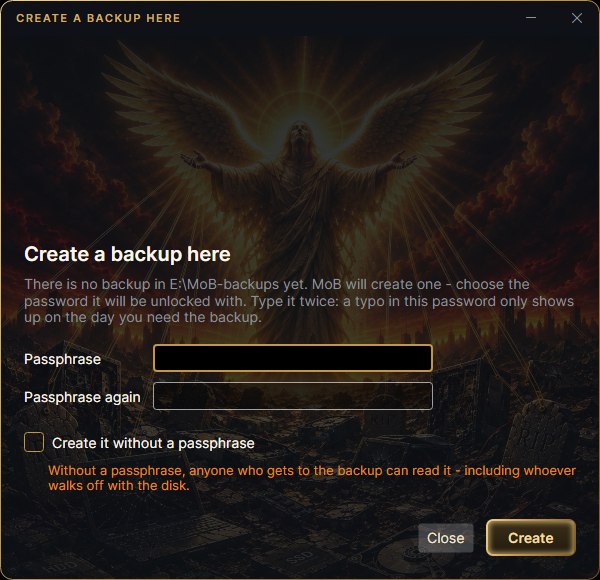
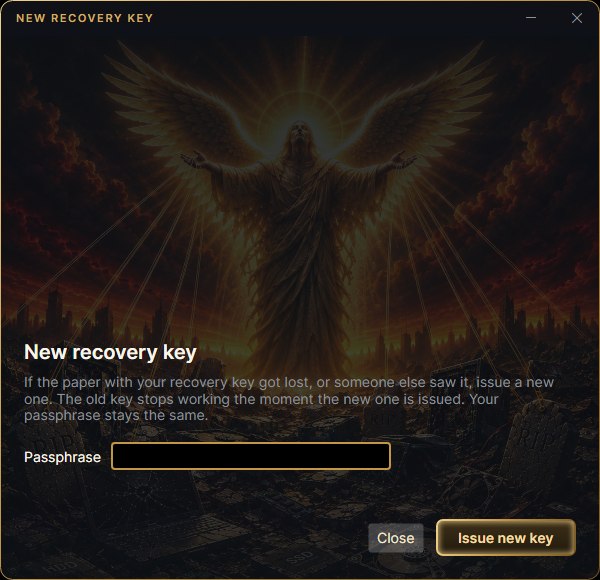
A passphrase can be added later too: for storage without one, the main window has a Protect it with a passphrase button. It rewrites the whole storage, so it needs about as much free space as the backup takes; the old backup is kept until the new one is finished.
Moving the storage elsewhere is a plain copy of the folder. On an NTFS disk, though, MoB gives the space of deleted backups back to the disk when it cleans up, and holes are left in the storage files - a file stays as long as it was, it just takes less space. File Explorer fills the holes in while copying, and the copy then takes more space than the original. robocopy <from> <to> /E /SPARSE:Y keeps them.
BitLocker only with a passphrase. While Windows runs, MoB reads a BitLocker volume decrypted, so the backup is a readable copy of everything BitLocker protects. That is why MoB does not back it up into storage without a passphrase: the main window says so up front and offers Protect it with a passphrase, and on a computer with BitLocker storage without a passphrase cannot be created. The restored volume will not have BitLocker - Done after the restore says so, and you turn encryption back on.
How to back up
- In the main window, click Schedule a backup… (once you have a plan, it is Edit plans… at the bottom right). The Backup schedule window opens.
- Pick what to back up: Whole disk…, Volume… or Folders…. The system disk comes first in the menu and is marked ← this computer. The gold Back up the system disk fills in the plan for you.
- Pick the storage folder with Choose target. If there is no storage there yet, the Create a backup here window opens: type the passphrase twice and click Create.
- Pick when it should run and click Save plan. Leave Run the plan right after saving next to the buttons ticked - the backup starts right away.
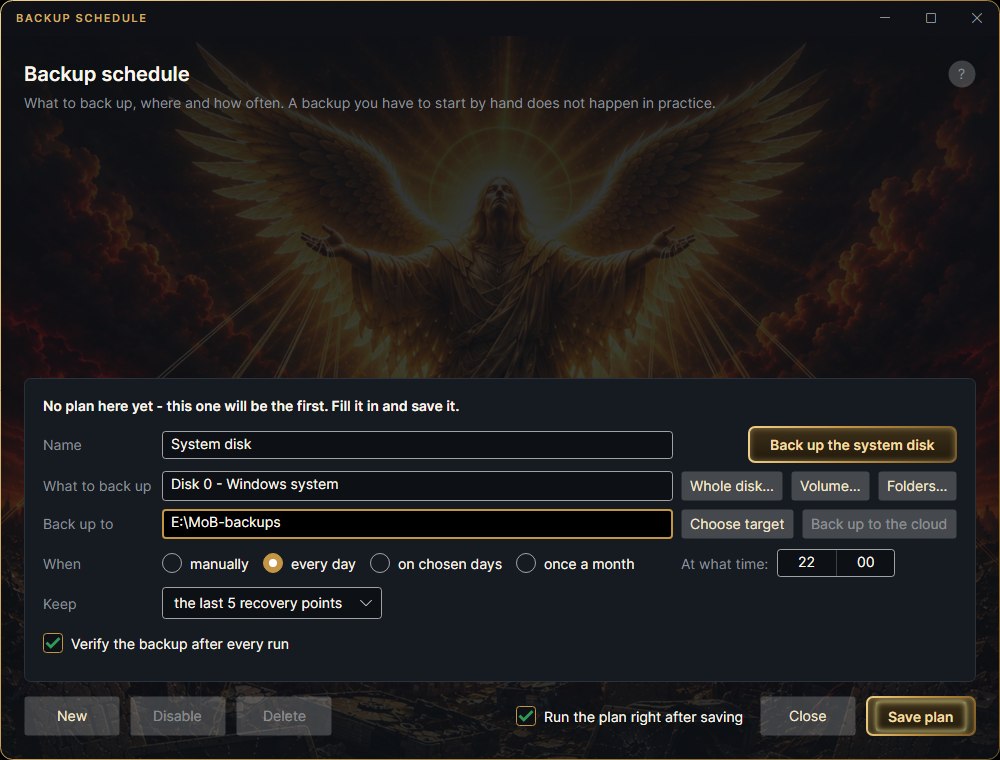
Any time later you start the plan with Run on its card in the main window. A one-off backup, say to a USB disk, is a plan with the schedule manually: it never starts on its own and runs only when you click Run. A backup can be stopped at any time: what was stored so far stays in the backup storage, and the plan shows Continue instead of Run, which picks up from there. A manual plan to a backup storage with a password that is not saved anywhere asks for the password before it starts and remembers it.

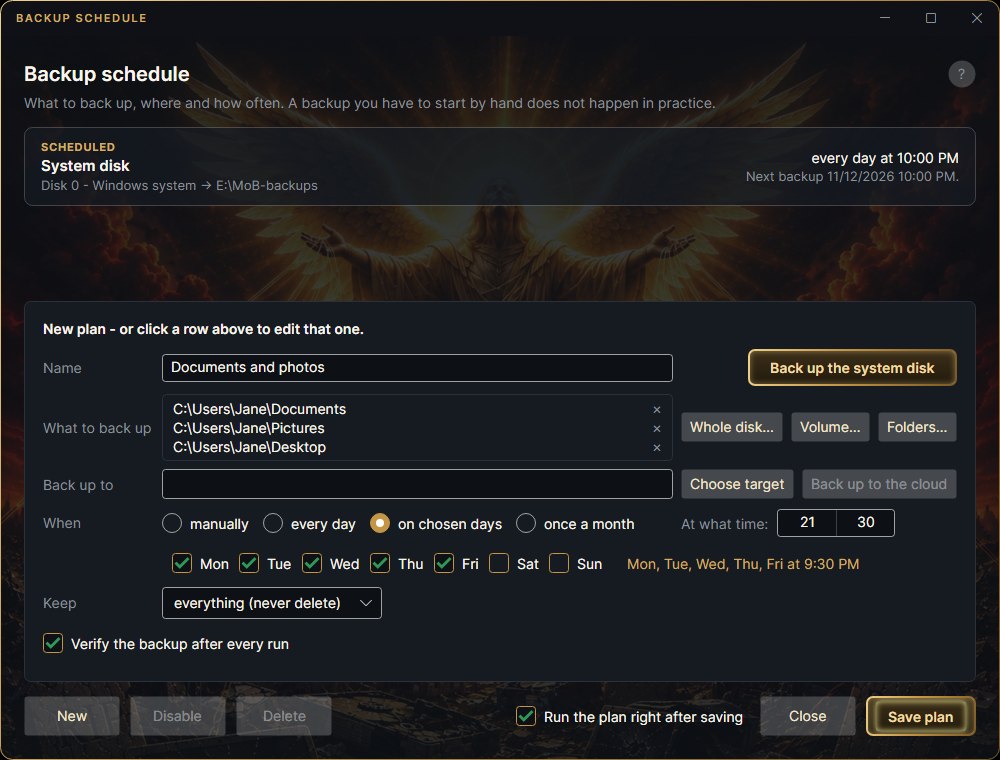
One plan can hold several folders: Folders… adds them to the list, and each gets its own restore point. To back up without a plan, there is the command line: mob backup, mob backup-disk and mob backup-files.
How much is actually read
Empty space is not copied. On a one-terabyte disk that is half full, half is read - not a terabyte. A partition with a file system MoB does not understand (FAT32, exFAT or a Linux one, say) is read whole in a whole-disk backup. A volume on its own MoB can only back up with NTFS so far - any other is refused right at the start, not halfway through the backup.
Proving it reads back
The plan has a checkbox Verify the backup after every run - on by default. After the backup MoB reads back what it stored and recomputes the hashes. The same thing any time by hand: the Check button next to a plan in the main window.
When the disk has bad sectors
They no longer kill the backup. MoB skips the bad spot, fills it with zeros and writes into the restore point what was lost - and says so at the end: "3 unreadable place(s), 12 MB in total, were skipped - the disk has bad sectors." Such a backup does restore and the computer usually boots from it, but it is not complete. Back that disk up once more onto a healthy one and stop using it.
Restore points
Every backup creates a restore point: the state of the disk at that moment. You see them in the list in the main window - when they were made, what is in them and how much each one added to the storage. If the storage is encrypted and the passphrase is not stored, open it with Unlock first. When the storage was last verified is shown at the top, in the Last check line. How many restore points MoB keeps is set in the plan.
Backing up works from a computer that is switched off
From the rescue medium a disk can be backed up or cloned outright without Windows running - useful for a dual boot, for Linux, and for a machine that no longer starts.