
Backup schedule
What to back up, where and how often. A backup you have to start by hand does not happen in practice.
A plan is one sentence
You open this window with the Edit plans… button at the bottom right of the main window (until you have a plan, it is called Schedule a backup…, and when the gold button by the verdict offers the same, it is only there). Every plan says three things: what is backed up, where it goes, and how often. Nothing else - the passphrase is not part of a plan and never will be; MoB takes the key from the keychain.
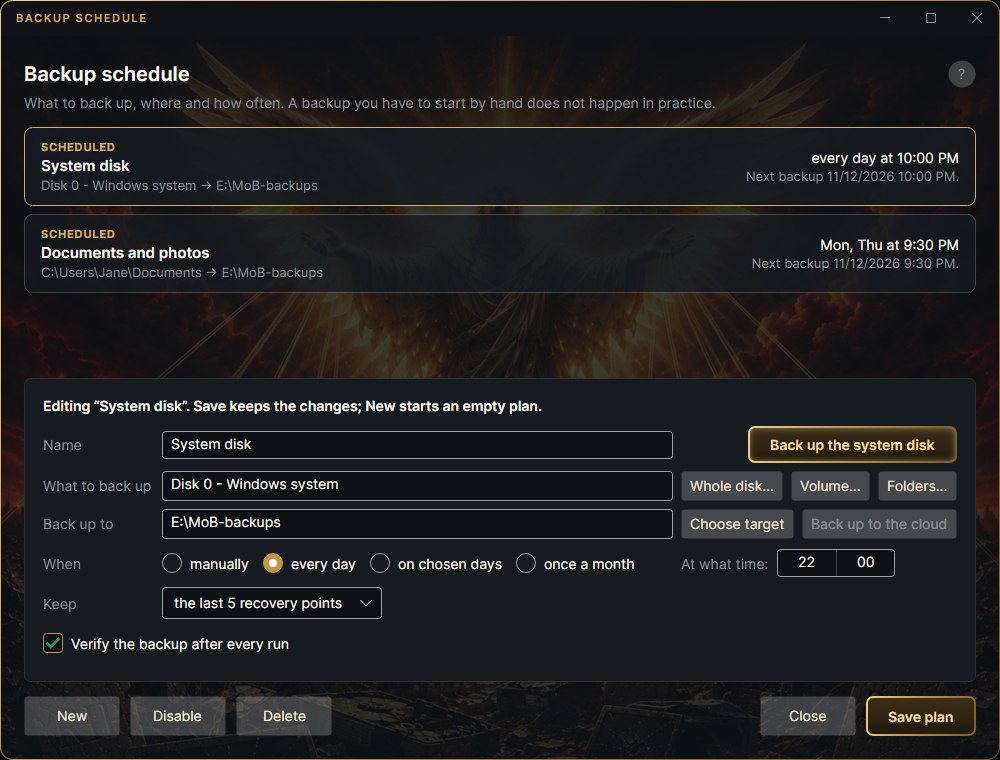
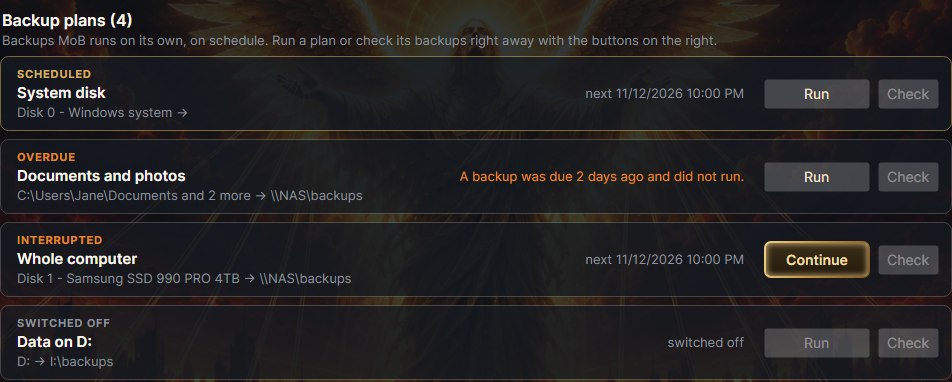
Every plan is a card with a status tag (scheduled, overdue, interrupted, will not run, manual, switched off). Click a card to edit that plan; Save plan keeps the changes, New starts an empty plan. Disable switches a plan off for now and keeps its settings. Delete removes only the plan - backups already made stay where they are. The form and the buttons below it stay put; only the list of plans at the top scrolls.
Volume, whole disk, or folder?
This is the choice worth thinking about - and the one you find out about at the moment you need the backup.
- Volume (
C:) - one partition with a drive letter, a bit-for-bit copy. For the volume Windows run from, MoB adds the partitions the machine boots from on its own, so the computer can be rebuilt from it. For any other volume (D:, a USB flash drive) it is just data. Volumes that do not sit on a physical disk (Google Drive, say) are not offered - no bit-for-bit copy can be made of them. - Whole disk (
0,1…) - the entire device, every partition and the partition table included. It takes whatever sits beside Windows too -D:, Linux, a dual boot. Largest and slowest. - Folders - files, nothing more. Smallest and fastest, right for documents and photos. Nothing boots from them and you cannot restore a system from them. One plan can back up several folders: the Folders… button adds them to the list, the × takes a folder out. Each folder gets its own restore point.
C: backup brings the boot partitions along by itself. Beside
C: there is the EFI System Partition (what the machine boots from),
Microsoft Reserved and the Windows Recovery partition. None of them has a
drive letter, so you could not pick them yourself - MoB adds them to the system volume backup together with
the partition table. From such a backup you can rebuild the whole system, even onto a new
disk - or put just C: back onto its original partition and leave the rest of the disk alone.
What is not in it: the other partitions of the same disk. If your
data lives on D: on that disk, it is in a whole-disk backup, not in the
C: one.
D: or of a USB flash drive is just data - the partitions the machine boots from are not in it, and the
rescue medium changes nothing: it is the tool you run the restore from, not the missing data. You get the
contents back onto a machine that already works, onto a disk that is already partitioned - and MoB will not
even offer a boot test for such a restore point: there would be nothing to boot.A disk is given by number, not a letter - letters belong to the partitions on it, the disk itself has none. In the window you pick it with Whole disk… - the plan then shows Disk 0 - Windows system (another disk with its model), and the model and size on hover. From the command line: mob job add --disk 0 --to R:\backup --daily 22:00.
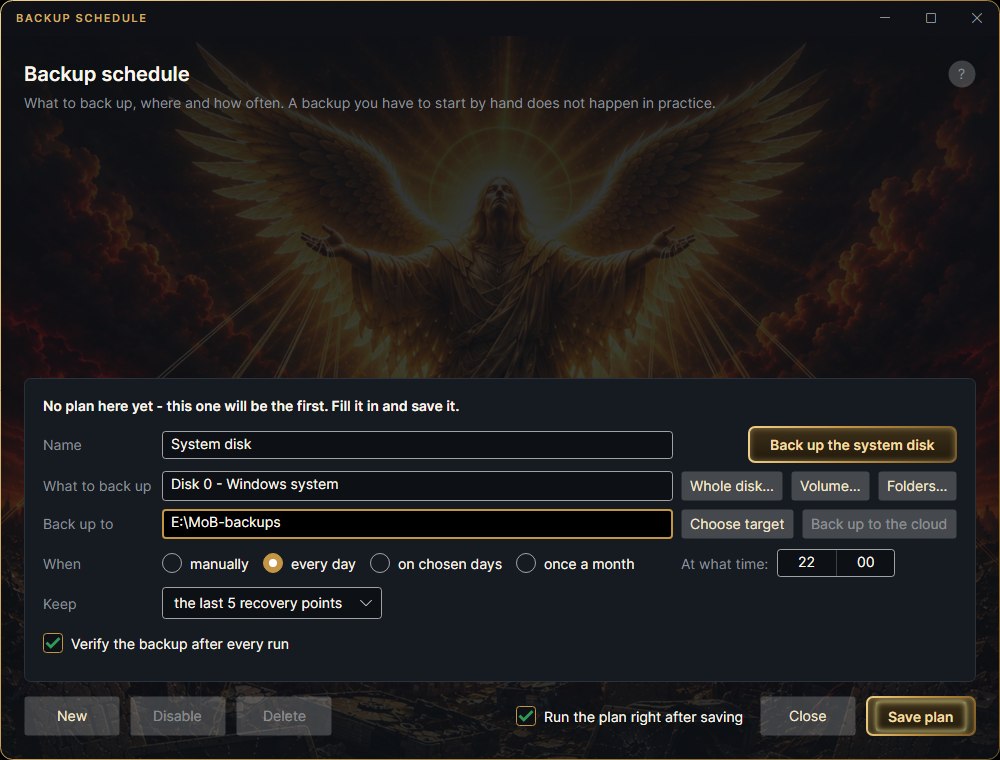
The gold Back up the system disk button fills in the plan for you: the disk Windows runs from, every night at 22:00, keeping the last five. Data disks are not in it - add each one as another plan with Whole disk….
Where the backup goes
Pick the target with Choose target, or type the path. If the folder you pick already holds other files, MoB offers to create a MoB-zalohy folder in it and keep the backups apart from them. A typed folder that does not exist is created after MoB asks. The Back up to the cloud button is switched off for now - backup storage with us in the cloud is coming.
How many backups are kept
A plan says how many of the most recent restore points to keep. Without that the backup storage grows forever - and a backup program that fills the disk and stops backing up is worse than none. MoB tidies up only after a successful backup, never before it: so there is never a moment with fewer backups than you asked for.
So "two increments left and the full backup gone" cannot happen. Whatever survives can be restored on its own - and the newest restore point is never deleted, whatever the rule says.
Run it once, right away
A new plan has Run the plan right after saving ticked at the bottom, next to Close and Save plan. Leave it ticked. A plan that first runs next week tells you nothing about whether it is set up right - a missing key, an unplugged disk or the wrong source would otherwise show up at night, with nobody there. It goes exactly the same way the scheduled run will, so whatever passes now passes at two in the morning. Any time later you start a plan with the Run button next to it in the main window.

The schedule is a sentence, not an expression
You pick from four options on the When row. The time is picked next to them from the At what time: list, which sits under the Choose target button - 24-hour clock, minutes in steps of five.
- manually - the plan exists but will not start on its own. It runs only when you click Run next to it in the main window - that is how you make a one-off backup, say to a USB disk. When the backup storage password is not saved anywhere, Run asks for it and remembers it.
- every day at a given time.
- on chosen days - you tick the days of the week on the row below the options; that row shows up only for this option. While no day is ticked, MoB pre-fills the working days. Next to the days MoB writes out what came of it: “every Thursday at 3:30”. "Monday, Wednesday and Friday at 3:30" is one plan, not three.
- once a month on a given day of the month - you pick the day on the row below the options (Day of the month:), which shows up only for this option; there too MoB writes out next to it what came of it.

If you pick day 31, you want a backup at the end of the month - so in February MoB runs on the 28th (or 29th) instead of skipping the month.
When a run is missed
A missed backup is not skipped. If your computer was off for a week, the backup runs at the next opportunity - and MoB tells you how long you waited: “A backup was due 6 days ago and did not run.” It counts from the first missed slot, because that is how long you were unprotected.
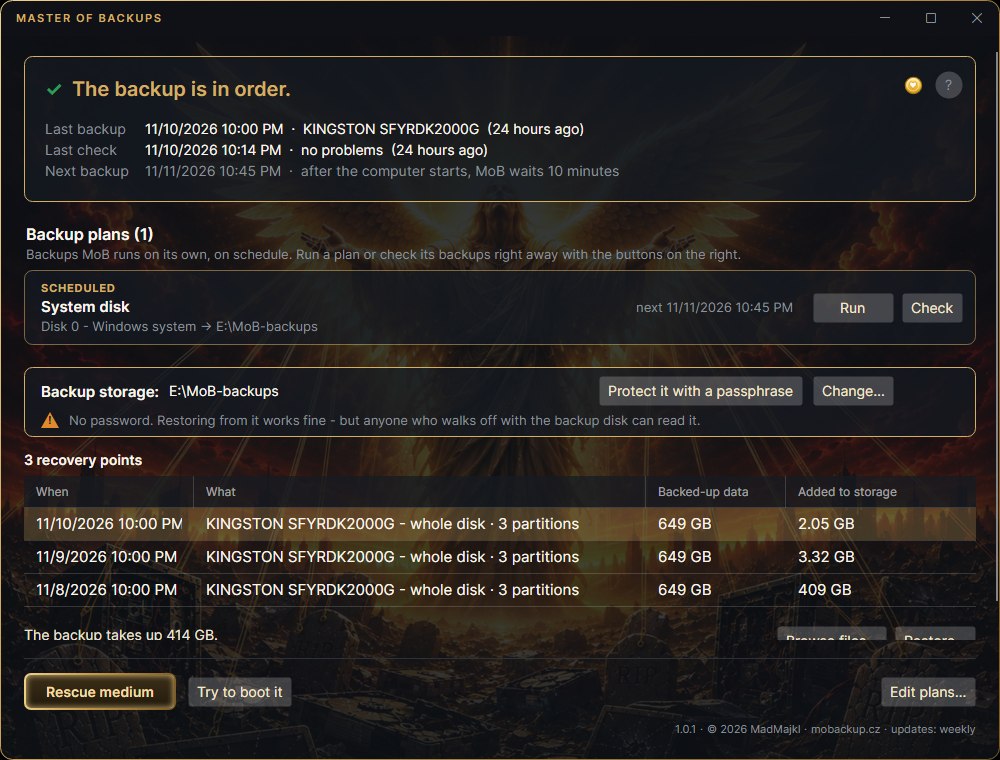
After the computer starts, MoB waits 10 minutes. A missed backup does not start the moment the computer boots or wakes from sleep, but 10 minutes later, so Windows can settle. Meanwhile the plan stays scheduled and shows when it will run; the main window adds why next to Next backup. A scheduled backup then runs in the background: while you work on the computer it steps aside. A backup started from the window does not wait and runs at normal priority.
mob service install.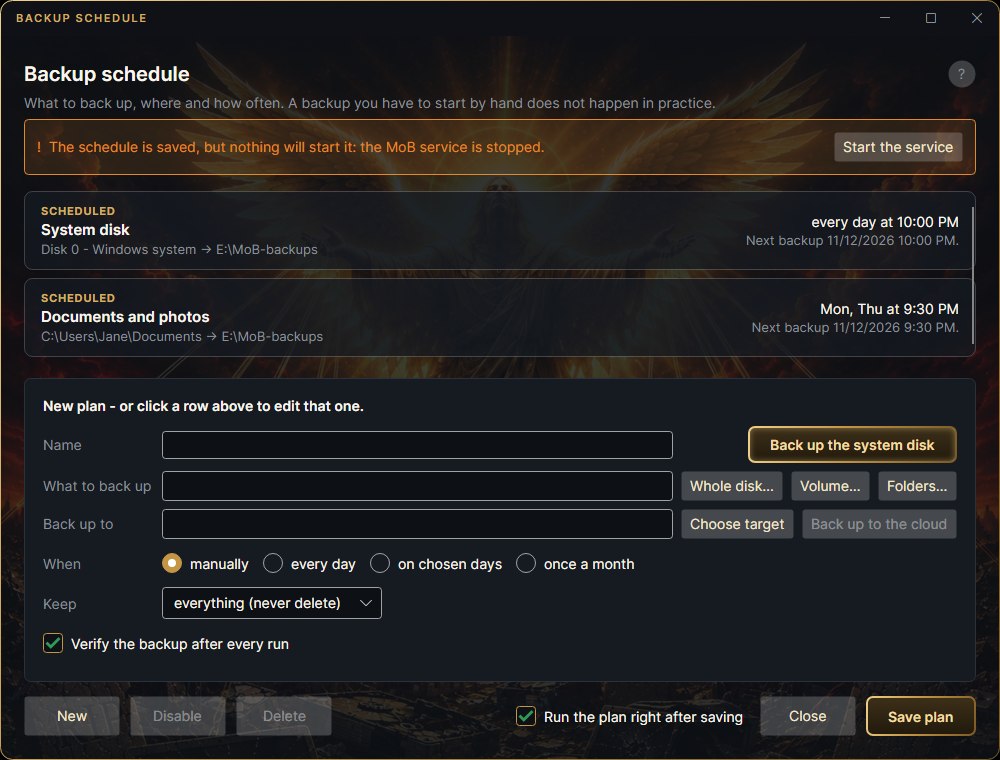
Backup overview
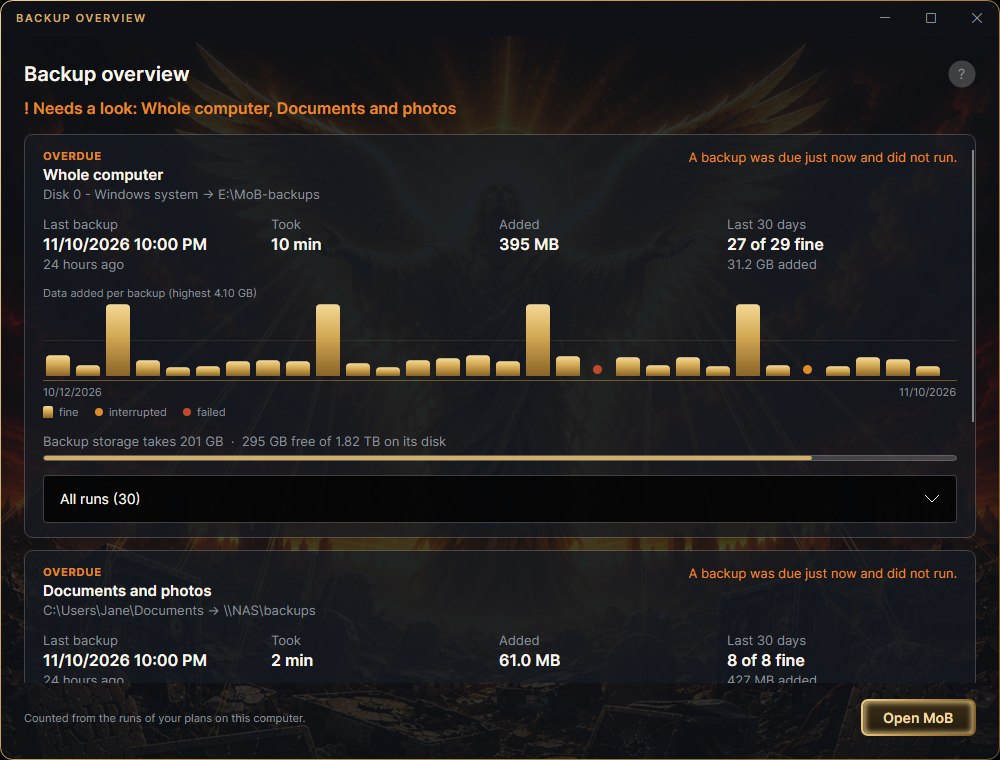
Double-clicking the MoB icon in the taskbar opens the Backup overview (when a backup is running, its progress opens instead). At the top is one sentence - everything is fine, or which plan needs a look; that plan is also first in the list. Every plan has a card: when a backup last went through, how long it took, how much data was added and how many runs in the last 30 days went through. Below are gold bars for the last 30 runs - the height is how much the backup added, an interrupted run is an orange dot, a failed one a red dot - and how much space is left on the disk with the backup storage.
The numbers come from the runs of plans on this computer. A plan that has not run yet shows a sentence instead of the chart: statistics start with its next backup.
From the command line
mob job add --what C: --to I:\MoB-system --name "System" --daily 22:00
mob job                     # what is scheduled and when it runs next
mob run-due                 # run whatever is overdue
mob job disable "System"    # switch off for now, settings stay
Days can be abbreviated: --weekly thu,03:30 finds Thursday. Exit code 1 from mob job means something is overdue - so it can be watched by a script.
So it can run without you: a key for the machine
A scheduled backup runs when nobody is at the computer. The service runs under the system account - and it cannot see your keychain. The Backup schedule window takes care of that when you save a plan: it hands a stored passphrase over to the service, and if there is none anywhere, it asks for it once. If that does not work out, the plan's row in the list says the service has no key; click it and there is an Enter the password… button above the form. From the command line plain mob remember is not enough; the service needs this:
mob remember I:\MoB-system --machineWithout a key, MoB writes into the service log that it has none and does not run the backup - it does not stall on a prompt. Silently waiting for a passphrase nobody will type is the worst possible way to not back up. What the service did overnight is shown by mob service log.
Backing up to a network share (NAS)
A plan can also back up into a network folder (\\nas\backups). A scheduled backup, though, is run by the service, and on the network the service signs in as the computer itself - an account your NAS does not know. That is why, when you save the plan, MoB asks for a user and password that work on the NAS (the Sign in to the network folder window, Sign in and save button) and stores them for the service. If they are missing, the plan's row in the list says the service cannot sign in; click it and there is a Sign in… button above the form. From the command line (as administrator):

mob share remember \\nas\backups --user name   # asks for the password
mob share test \\nas\backups